
Remote control
How to get the video stream from your display?
Easy Multi Display lets you broadcast the video stream from your display to another workstation, whether on your local network or remotely over the Internet with a fixed IP address. This way you can relay the image of your video wall to another room, a supervision station or a remote site.
On the broadcasting workstation (sender)
- Open the EMD remote control (EMD Remote).
- Go to the screen recorder settings (Screen Recorder).
- Configure the video options according to your needs.
- Tick the “With Stream” and “Only stream” boxes.
- Enter the destination IP address and the UDP port.
- Click “REC” to start broadcasting.
The sending workstation then continuously streams the video to the address and port you specified.
On the receiving workstation (receiver)
To play back the received stream, we recommend Media Player Classic (MPC-HC), a lightweight, free and open source media player. You can download it from the official website https://mpc-hc.org/ or from the releases published on GitHub.
Receiving on a local network
In Media Player Classic, enter the stream address in the following format, then click Play:
udp://192.168.1.22:1234
Replace the IP address and port with those configured on the sending workstation.
Receiving over the Internet (remote network)
To receive the stream remotely, a few network configuration steps are required:
- Open the UDP port on your router or modem (the procedure is similar on Neufbox, SFRBox and most routers).
- Assign a fixed public IP address to your installation.
- If your public address changes regularly, use a dynamic DNS service such as Dyndns or No-IP to have a stable access name.
Alternative method: embed the stream in EMD
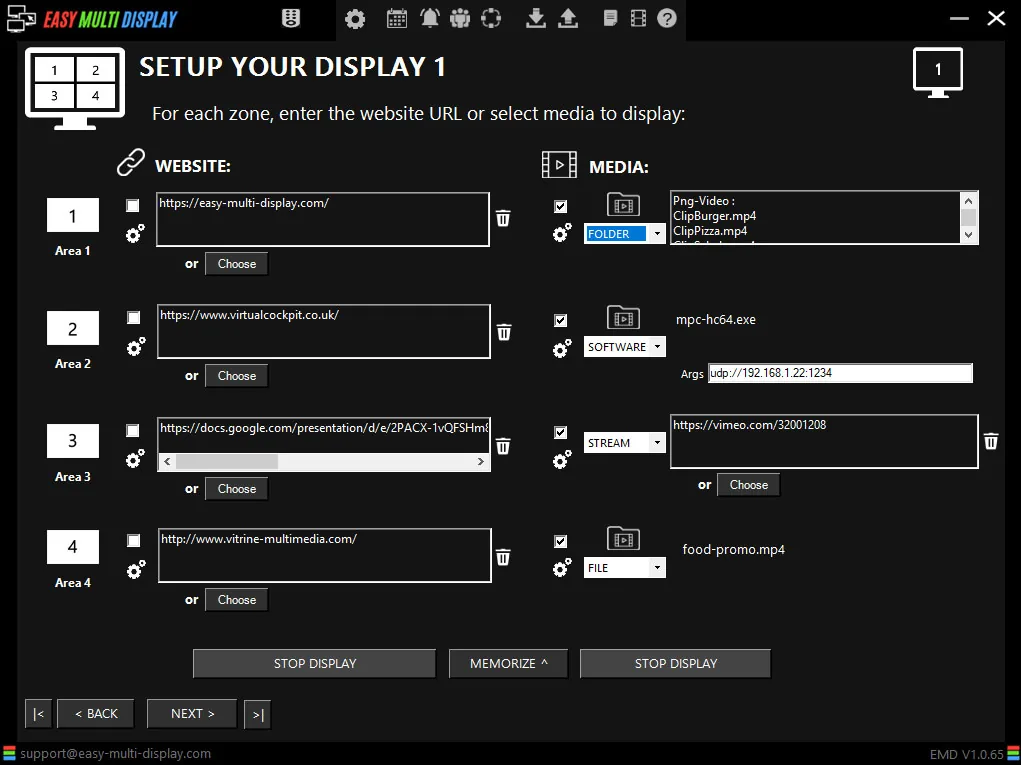
You can also embed the stream directly into your display using the “SETUP YOUR DISPLAY” function of Easy Multi Display:
- Select the
mpc-hc64.exesoftware as the application to launch. - Add the stream address as an argument in the format
udp://ip address:UDP port.
You can enhance the command with additional options, for example:
udp://192.168.1.22:1234 /play /viewpreset 1
The video stream then automatically appears in a zone of your video wall.
Support
If you run into a technical issue, check the FAQ, download the user guide or contact customer support at support@easymultidisplay.com.