
Drag & Drop
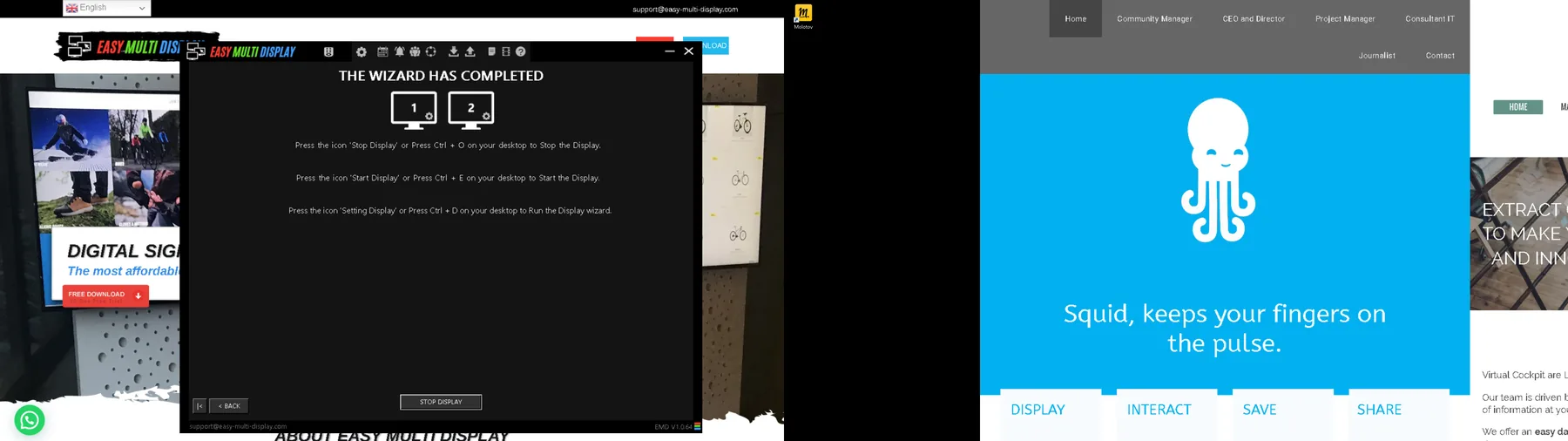
Web pages the wrong size or position on the video wall?
Are you displaying a web page on your video wall with Easy Multi Display and the result is not right: the page is too large, cut off or shifted from the intended area? This problem is almost always linked to a Windows setting, and it can be fixed in just a few clicks.
Where does the problem come from?
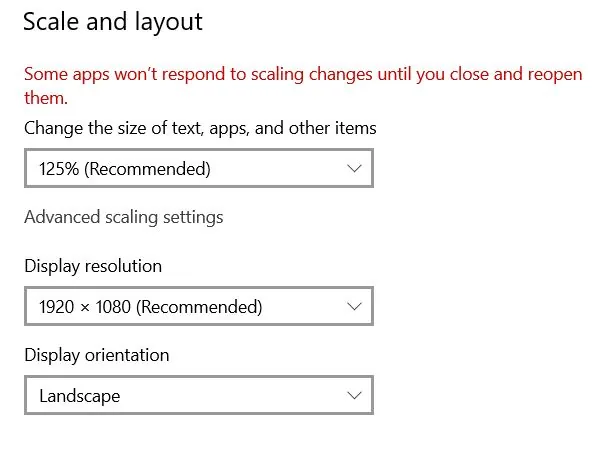
When an internet page displays with the wrong size or the wrong position, the cause is usually the Windows scaling. By default, Windows sometimes applies a 125% magnification to the display. This setting enlarges the text, applications and other on-screen elements, but it also distorts the way Easy Multi Display calculates the dimensions of web pages. The result: the content overflows its area or ends up badly positioned.
The solution: set the scaling to 100%
To get back a sharp and well-framed display, you have to tell Windows to show elements at their real size, that is to say at 100%, and to do so on every screen.
Step 1: open the display settings
Right-click on the Windows desktop, then select “Display settings” in the menu that appears.
Step 2: check the scaling
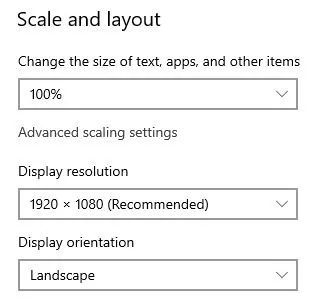
In the “Scale and layout” section, check the scaling value. It must be set to 100% for every screen, and not to 125%.
Step 3: switch to 100%
Select 100% in the list. This change brings the text, applications and other elements back to their normal size across all screens.
The result
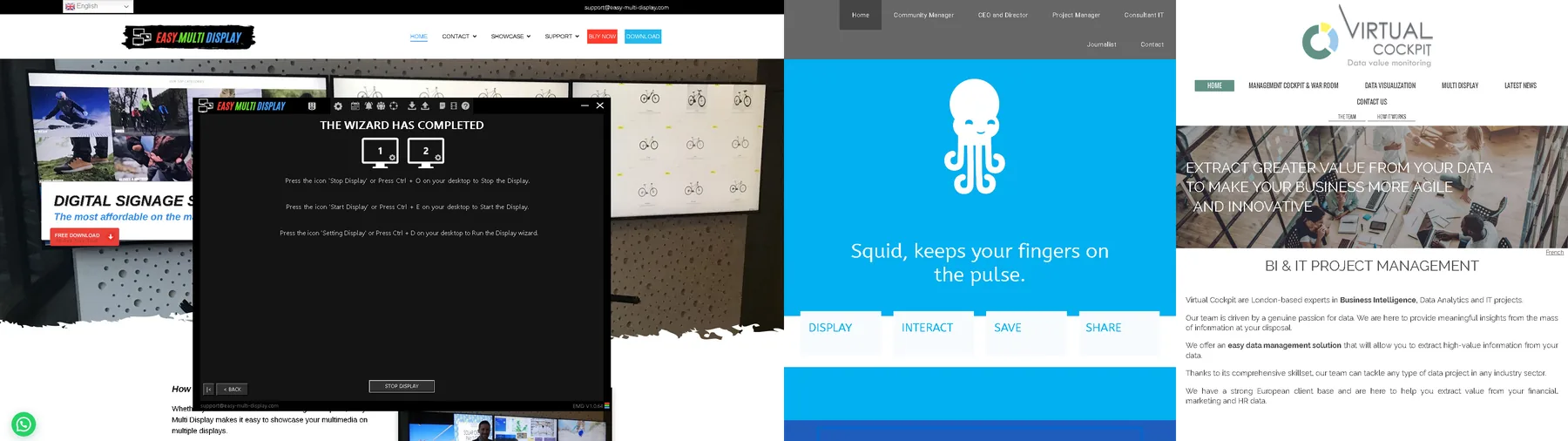
Once the scaling is set to 100%, web pages display correctly in Easy Multi Display: the size is respected and the positioning within the area is accurate again. Remember to apply this setting on each screen connected to the video wall.
Need help?
If you still have a problem with the size or position of internet pages:
- Check the F.A.Q. section.
- Download the user guide.
- Contact customer support at support@easymultidisplay.com.
Would you like to try Easy Multi Display? Download the free trial version from our website.