Believing the initial request
8 captures requested, 18 in service. The need grows as soon as the services see the wall. You need a system where adding a source comes down to one cable.

Temporary control room · Checklist
A temporary control room is prepared a month ahead and built in two days. Here is our checklist, from the first test to the last cable folded away, drawn from the control room we built and ran at Lourdes in 2026.
Where this list comes from
A permanent control room has years to mature. A temporary control room has only a few days: it is built in a borrowed hall, runs day and night, then is handed back. The services arrive with their computers, their networks and their rules, and everything has to work from the moment the room opens.
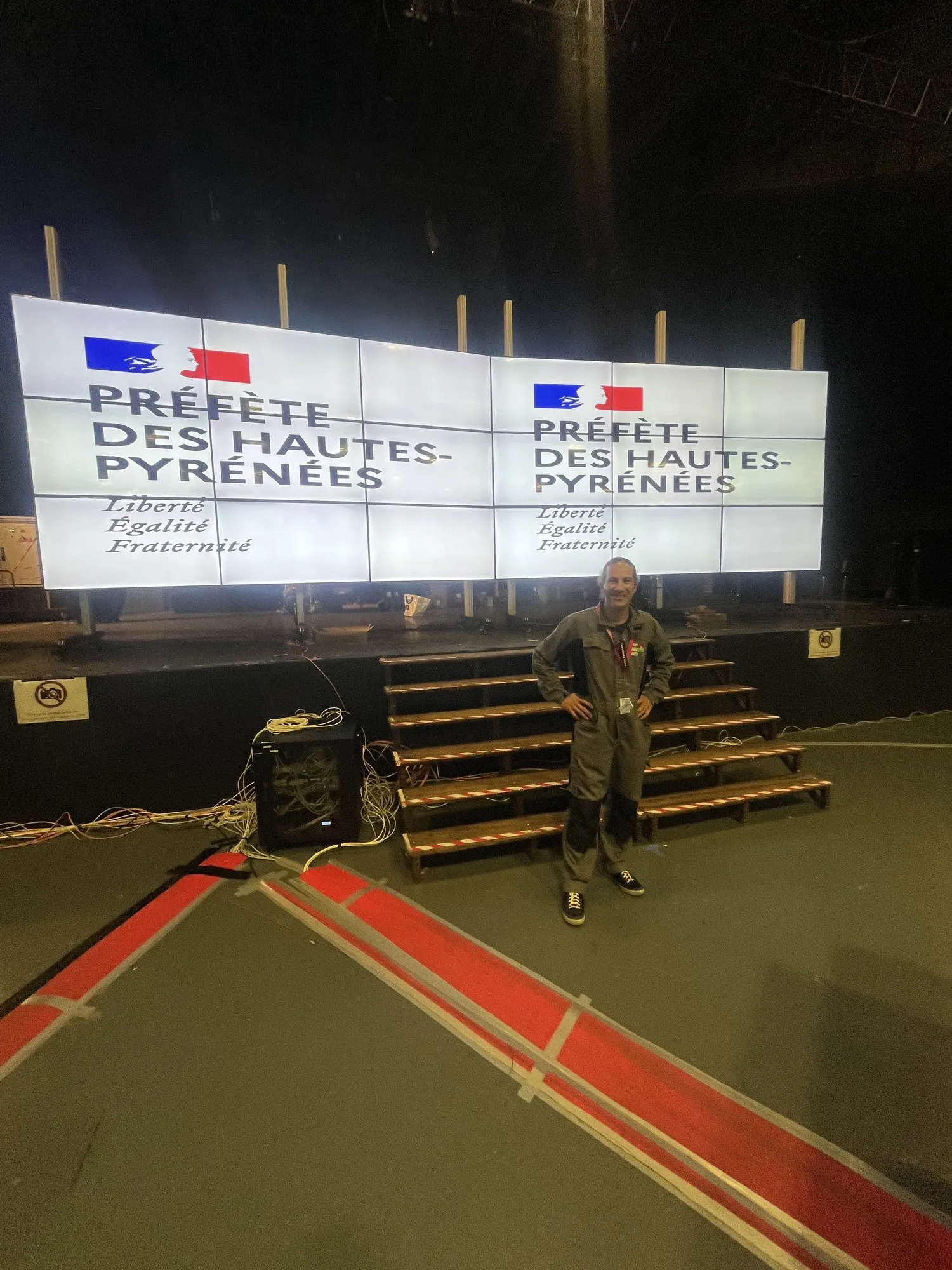
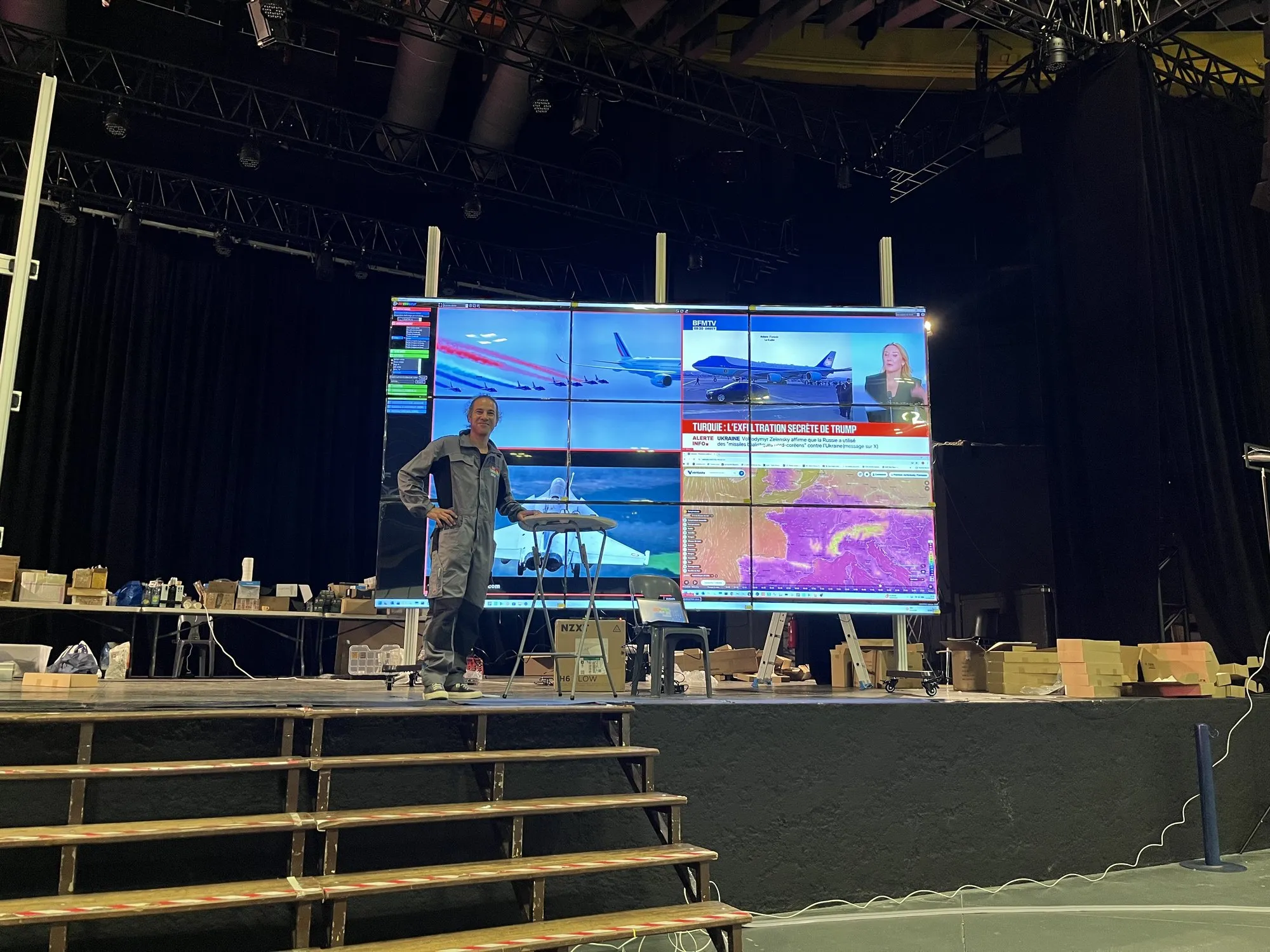
This list comes from the field. For Pope Leo XIV's visit to Lourdes in September 2026, we designed, built and ran the video walls of the prefecture's control room: two walls of 9 screens, a dozen entities, 18 computers shown. In all, 30 person-days, from preparation to dismantling. Here is what we would do again, and what we will not do again.
D-30 to D-7
Everything is decided before the build. What will be displayed is settled zone by zone, then put through days and nights of testing.
Each entity has its zone, in a place agreed with the authority. At Lourdes, the layout was settled almost three weeks before opening. After that, no more improvising.
We had been asked for 8 captures, we displayed 18. Every service that sees the wall wants to bring its own picture. Keep spare capture inputs in reserve.
Each workstation gives its picture over an HDMI cable, and nothing else. You bring the pictures together, never the networks.
13 days of testing on the test workstation, including 24 hours of endurance. Several defects only appear after hours of operation: a ten-minute demonstration does not show them.
One by one. Out of 140 sources checked, 28 no longer responded. All were replaced before opening.
Once the tests are passed, no more changes. At Lourdes, 178 changes were tested, then the version did not move again, four days before opening.
The control, the television, the screen sharing: for every element that could fail, a replacement on site, plugged in and tried out.
Plugging in your computer, duplicating or extending, sharing your screen without a cable, what to do if nothing appears: four A4 sheets, to be filled in by hand for each room.
D-2
In theory, the two walls needed four days. There were three of us, and two days after we arrived, everything was cabled, aligned and driven by touch.
Our Kimex mounts arrive on castors with brakes and adjust to the millimetre. 3.80 metres high, about 125 kg of structure and about a hundred kilos of screens per wall.
The video wall controller spreads one picture over the 9 screens, set to 3 × 3. The software then cuts that picture into zones, windows, sources.
100 metres claimed, 50 in practice with a good category 6 cable. The cable is only a carrier: no picture goes through a computer network.
The cable laid on the table bears its service's name. On the day, nobody hunts for theirs, and the picture arrives in the right zone.
The control computer, its touchscreens, and the backup server right next to it. Our command case, placed on a table, serves as a second control station.
Our Teltonika router creates a network reserved for the room, without Internet, independent of the site's. The screen-sharing server and the control computer are connected to it by cable.
Not everyone faces the walls. At Lourdes, five to seven 65-inch screens repeated its picture, and an off-the-shelf wireless HDMI kit carried it to the distant islands.
D-1
The day before, the software is frozen. We check the room itself, with the real hardware and the real tables.
One workstation, one cable, the capture, the control, the picture on the wall. On site, table by table.
The picture of a workstation that is plugged back in must return to the wall on its own. Check it at every table: on the day, the cables will move.
One workstation on the room's network, a link, the picture on the wall. At Lourdes, QuickShare was validated this way the day before opening.
The backup server, television by antenna, the screen sharing installed in the room. A backup that has never been switched on is not a backup.
A scenario is a saved layout of the wall, which you recall with one gesture. Go through them all, looking at the wall, not only at the control screen.
The wall zone, the sharing address, the control desk phone number: by hand, on each sheet. What is not written down will have to be explained workstation by workstation.
One zone of the wall shows the time left before each stage of the programme, in very large red figures.
Day D
The hardest part of an operation is not the video wall: it is what happens at each workstation, around a simple HDMI cable.
A temporary room is not simply delivered, it is accompanied. People unplug to go to a meeting, plug back in on returning, and the picture disappears at the worst moment. A cable not pushed in fully gives a black screen: someone has to run from one workstation to the next.
In duplicate mode, the room sees the whole screen, messages included. In extended mode, it only sees the window placed on the wall. The setting takes two minutes to show.
A new source means one more HDMI cable and a zone on the wall. One source can feed several zones.
A drone's camera or a piece of information still being checked has no place on the wall before the authority agrees. In CollectivView, a right-click hides the source, which only returns on order.
The software never restarts a source by itself and never switches over without an order. Switching to a backup is decided as a team.
We did it every thirty minutes, from late Saturday afternoon until Monday. No crash, and headroom on both the graphics card and the memory.
A crisis room does not sleep: more than 48 hours of continuous service, with two of us. When one sleeps, the other watches over the walls. This is planned for from the quotation.
D+1
When the operation is over, the room disappears as cleanly as it appeared. What remains is what we learned.
At Lourdes, dismantling started on the very day of the departure, and the hall was handed back as we had found it.
CollectivView collected no photo and no video during the event. Nothing that was displayed on the walls was kept.
By default, QuickShare records no video. Once the session is deleted, everything goes with it.
Every cable keeps its label. The hardware leaves ready for the next room, with nothing to rediscover.
While everything is fresh. Our table sheets and hiding a source in one click were born at Lourdes.
We handed out 200 embroidered “Lourdes 2026” keyrings. In a serious, focused room, a smile exchanged counts too.
The hardware
Everyday hardware, which you can find, replace and understand. Nothing that ties you to a single manufacturer.
| Screens | Off-the-shelf 65-inch televisions, 9 per wall | Linked over HDMI, with no network connection at all. Easy to find, easy to replace. |
|---|---|---|
| Structure | Kimex mounts on castors with brakes, 3.80 m high | French brand, in Bordeaux. Millimetre adjustment. About 125 kg of structure, and about a hundred kilos of screens. |
| Video wall controller | 1 input, up to 16 outputs, set to 3 × 3 | It spreads one picture over 9 screens. €150 to €200 depending on the seller. |
| Link to the walls | HDMI extenders over network cable | 100 metres claimed, 50 metres in practice with a good category 6 cable. |
| Table cables | One labelled HDMI cable per workstation, with a USB-C adapter | The only link between a service's workstation and the wall. It carries the picture only. |
| Captures | Our capture card, 4 HDMI 4K inputs | Keep inputs in reserve: at Lourdes, 8 captures requested, 18 in service. |
| Control | One computer, 4K outputs, touchscreens | CollectivView. Sources received over HDMI only. A touchscreen can be left for the services to use. |
| Control backup | A backup server, next to the control computer | Ready to take over and resume the display of the walls. |
| Backup television | UHF antenna, two-input tuner card, TNT dongle | The channels picked up by antenna, as at home, without depending on the Internet. |
| Satellite rooms | HDMI multi-socket with 8 inputs and touchscreen | Up to 8 computers on one screen, from the single source to the screen split into 8 cells. |
| Mirroring | 65-inch screens and an off-the-shelf wireless HDMI kit | The picture of the walls for those who do not face them. Wireless kit: direct link, no box and no network. |
| Room network | Our Teltonika router and a Linux server | QuickShare installed in the room, to share a screen without a cable. No need for the Internet. |
| Mobile control desk | Our command case | A second control station, ready in minutes on a table. |
Lessons learned
8 captures requested, 18 in service. The need grows as soon as the services see the wall. You need a system where adding a source comes down to one cable.
Several defects only appear after hours of operation. It is the days of testing that bring them out. We test for a long time, then we freeze.
A backup server, television by antenna, screen sharing in the room. None had to be used. All were ready.
At Lourdes, we explained workstation by workstation how to plug in a cable or share a screen. We had not written it down. Now, a sheet is laid on every table.
A sensitive source must not appear on the wall before the authority agrees. Rather than switching scenarios, we hide it in one click, and it only returns on order.
In a temporary room, workstations move. A cable not pushed in fully, a window to put back in place: it takes patience, and a team on site.
Case study
This list was born from a real room: two walls of 9 screens, 18 computers shown, more than 48 hours of service, no crash. The full story, the photos, the videos of the build and the ten defects fixed before opening are in the case study.
Your questions
The answers come from the Lourdes 2026 control room.
At Lourdes, the two 9-screen walls were built in two days instead of the four planned, by a team of three people. The preparation starts well before: the wall layout was settled almost three weeks before opening.
No, and that is the very principle of the setup: each workstation gives its picture over an HDMI cable, which carries only the picture. Each service's information systems stay separate, from one another and from ours.
More than requested: at Lourdes, the request went from 8 captures to 18 in service. Adding a source means plugging in one more HDMI cable and giving it a zone on the wall.
No: the walls receive their sources over HDMI cable, and the control computer has no Internet access. QuickShare, installed on our server in the room, does without it too, and television can be picked up by antenna.
No: at Lourdes, CollectivView collected no photo and no video. Nothing that was displayed on the walls was kept.
One HDMI output and one cable, nothing to install on the computer and no network to share. The user only chooses between duplicating and extending their screen, a setting we show everyone in two minutes.
Temporary control room or permanent command room, the hardware and the method are the same. We design, we build, we stay at your side until the last cable is folded away.